Contents Menu Expand Light mode Dark mode Auto light/dark, in light mode Auto light/dark, in dark mode Skip to content
Read the Docs user documentation
Light Logo Dark Logo

Getting started

  • Tutorial
  • Adding a documentation project
  • Popular documentation tools
    • Deploying Sphinx on Read the Docs
    • Deploying MkDocs on Read the Docs
    • Deploying Docusaurus on Read the Docs
    • Deploying Markdoc on Read the Docs
    • Deploying mdBook on Read the Docs
    • Deploying VitePress on Read the Docs
    • Deploying Antora on Read the Docs
    • Deploying Zensical on Read the Docs
    • Deploying MyST Markdown on Read the Docs
  • Example projects

Project setup and configuration

  • Configuration file overview
  • Configuration file reference
  • Read the Docs Addons
  • Account authentication methods
  • Automation rules
  • How to create reproducible builds

Build process

  • Build process overview
  • Build process customization
  • Git integration (GitHub, GitLab, Bitbucket)
  • Pull request previews
  • Build failure notifications
  • Environment variable overview
  • Environment variable reference

Hosting documentation

  • Versions
  • Subprojects
  • Localization and Internationalization
  • URL versioning schemes
  • Custom domains
  • URL path prefixes
  • Documentation notifications
  • Canonical URLs
  • Content Delivery Network (CDN) and caching
  • Sitemap support
  • 404 Not Found pages
  • robots.txt support
  • llms.txt support
  • Markdown for AI agents

Reading documentation

  • Offline formats (PDF, ePub, HTML)
  • Visual diff
  • Link previews
  • How to embed content from your documentation
  • Server side search
  • Search query syntax
  • Flyout menu

Maintaining projects

  • Redirects
  • Traffic analytics
  • Search analytics
  • Security logs
  • Status badges
  • How to structure your documentation
  • Best practices for linking to your documentation
  • Security considerations for documentation pages
  • Main content detection
  • AI agent skills
  • Custom script

Business features

  • Business hosting
  • Organizations
  • Single sign-on (SSO)
  • Sharing private documentation
  • How to manage your subscription
  • Privacy levels

How-to guides

  • Project setup and configuration
    • Connecting your Read the Docs account to your Git provider
    • Configuring a Git repository manually
    • Managing custom domains
    • Managing subprojects
    • Hiding a version
    • Using a .readthedocs.yaml file in a sub-folder
    • Using custom URL redirects in documentation projects
  • Build process
    • Setup email notifications
    • Setting up outgoing webhooks
    • Configuring pull request builds
    • Using custom environment variables
    • Managing versions automatically
    • Skip builds based on conditions
  • Upgrading and maintaining projects
    • Creating reproducible builds
    • Using Conda as your Python environment
  • Content, themes and SEO
    • Search engine optimization (SEO) for documentation projects
    • Using traffic analytics
    • Using search analytics
    • Enabling offline formats
    • Embedding content from your documentation
    • Managing translations for Sphinx projects
    • Supporting Unicode in Sphinx PDFs
    • Cross-referencing with Sphinx
    • Linking to other projects with Intersphinx
    • Using Jupyter notebooks in Sphinx
    • Migrating from rST to MyST
    • Adding custom CSS or JavaScript to Sphinx documentation
    • Adding "Edit Source" links on your Sphinx theme
  • Security and access
    • Single sign-on (SSO) with GitHub, GitLab, or Bitbucket
    • Single sign-on (SSO) with Google Workspace
    • Single sign-on (SSO) with SAML
    • Managing Read the Docs teams
    • Creating a project from a private repository
    • Using private Git submodules
    • Installing private python packages
    • Manage maintainers
  • Account management
    • Managing your Read the Docs for Business subscription
    • Configuring two-factor authentication
  • Best practice
    • Deprecating content
    • Best practices for linking to your documentation
    • Creating reproducible builds
    • Search engine optimization (SEO) for documentation projects
    • Hiding a version
  • Troubleshooting problems
    • Troubleshooting build errors
    • Troubleshooting slow builds

Reference

  • Public REST API
    • API v3
    • API v2
    • Server side search API
    • Cross-site requests
  • Frequently asked questions
  • Changelog
  • About Read the Docs
    • Policies and legal documents
      • Abandoned projects policy
      • Unofficial and unmaintained projects policy
      • Privacy Policy
      • Security policy
      • Security reports
      • `Terms of Service <https://about.readthedocs.com/terms-of-service/>`_
      • DMCA takedown policy
        • 2022-06-07
      • Data Processing Addendum (DPA)
        • Sub-processor list
    • Advertising
      • EthicalAds
      • Advertising details
      • Ad blocking
      • Customizing advertising
    • The story of Read the Docs
    • Sponsors of Read the Docs
    • Documentation in scientific and academic publishing
    • Read the Docs open source philosophy
    • Read the Docs team
    • Site support
    • Glossary
  • Developer Documentation
  • Read the Docs website
Back to top
View this page

Server side search

Read the Docs provides full-text search across all of the pages of all projects, this is powered by Elasticsearch.

See also

Search query syntax

Syntax options for searching Read the Docs projects

Server side search API

Reference to the Server Side Search API

Search features

Read the Docs has the following search features:

Search across subprojects

Subprojects allow you to host multiple discrete projects on a single domain. Every subproject hosted on that same domain is included in the search results of the main project.

Search results land on the exact content you were looking for

We index every heading in the document, allowing you to get search results exactly to the content that you are searching for. Try this out by searching for “full-text search”.

Full control over which results should be listed first

Set a custom rank per page, allowing you to deprecate content, and always show relevant content to your users first. See search.ranking.

Search across projects you have access to

Search across all the projects you have access to in your Dashboard. Don’t remember where you found that document the other day? No problem, you can search across them all.

You can also specify what projects you want to search using the project:{name} syntax, for example: “project:docs project:dev search”. See Search query syntax.

Special query syntax for more specific results

We support a full range of search queries. You can see some examples at Special queries.

Configurable

Tweak search results according to your needs using a configuration file. You can also enable or disable the search modal, and toggle the subprojects filter shown inside it, from your project’s Settings, in the left bar, under Search.

Ready to use

We override the default search engine of your Sphinx project with ours to provide you with all these benefits within your project. We fallback to the built-in search engine from your project if ours doesn’t return any results, just in case we missed something 😄.

API

Integrate our search as you like. See Server side search API.

Analytics

Know what your users are searching for. See Search analytics
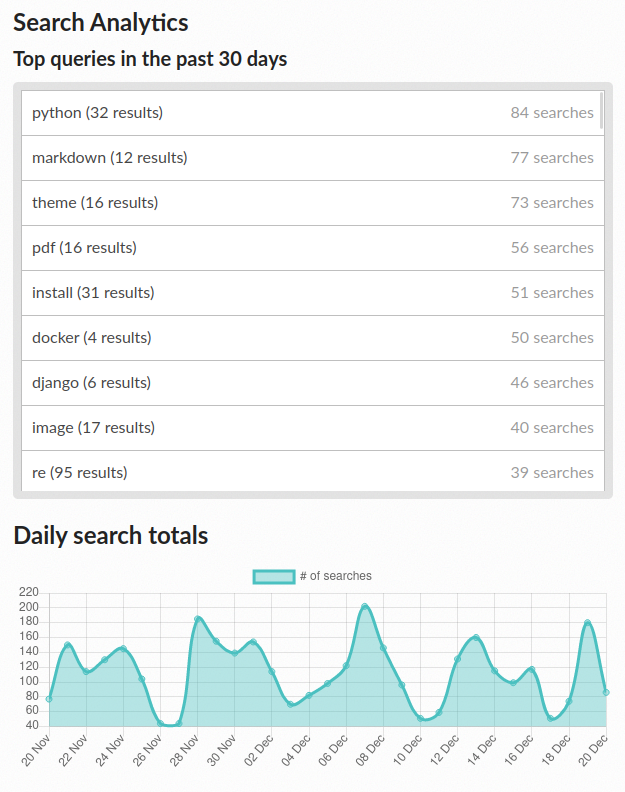
Search analytics demo

Search analytics demo. Read more in Search analytics.

Search as you type

Search as-you-type allows users to quickly find exactly what they are looking for while typing. It also saves recent searches, for future reference.

Try it by pressing / (forward slash) and typing.

Configuring search

You can configure search options for your project from the dashboard:

  1. Go to the dashboard.

  2. Click on a project name.

  3. Go to Settings.

  4. In the left bar, go to Search.

From there you can toggle Enable search modal, which controls whether the Read the Docs search modal is shown in your documentation, and Show subprojects filter in search modal, which controls whether readers can filter search results by subproject.

How main content is detected

Server Side Search indexes the “main content” of HTML pages, ignoring headers, footers, navigation, and other page elements that aren’t part of the documentation content itself. This keeps results focused and avoids repeated elements like nav menus from polluting relevance.

For details on how the main content area is detected, see Detection logic.

Next
Search query syntax
Previous
How to embed content from your documentation
Copyright © Read the Docs, Inc & contributors
Made with Sphinx and @pradyunsg's Furo
On this page
  • Server side search
    • Search features
    • Search as you type
    • Configuring search
    • How main content is detected